
You can now add custom content to the top of your department pages. Add an image or write some descriptive text to give your pages some personality.
Here’s an example using Hana Bay Coffee (hanabaycoffee.flyingcart.com). I added an image to illustrate the “Hawaii” concept on this page and I wrote a few sentences about the Hawaiian beans.
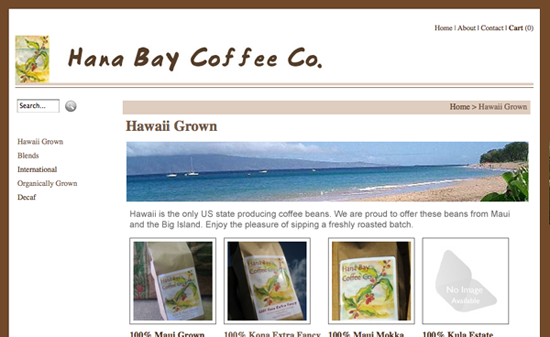
Here’s how to do it:
1. Log in to your heaquarters and go to the Products > Departments page.
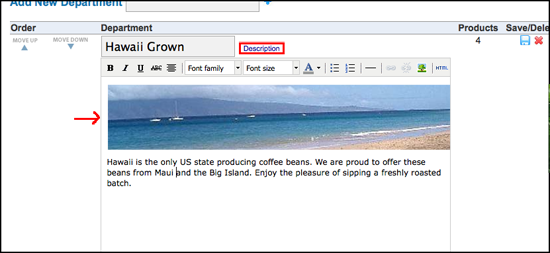
2. Click on the word “Description” next to the department name and an HTML editor will appear.
3. Enter your content into the editor. If you want to insert an image, you can use one of the images you uploaded on your custom CSS page or you can link to an image that you have hosted elsewhere (try <a href=”http://www.flickr.com” target=”new”>Flickr</a>).
4. When you are done, click the blue disk icon next to the department to save your changes.
5. Go to your store and check out the department page. How does it look?
Tags: design
OOOOOMMMMMMGGGGGGGGGG….I could kiss you!!!!! Ask and you shall receive!!!! I am so thrilled at this addition you have no idea Flying Cart team. I’m heading to my store and am making headers. Yippie!!!!! Thank you thank you thank you!!!!!
Awesome feature addition!
This is an awesome addition! FC gets better and better. I was wondering do you guys think you can add a more advance option of adding in themes, layouts sort of thing. Most of us want that css style but not many are knowledgeable. If there was some kind of help for more layout styles of how everything is arrange, would be nice.
Thank you all so much for finally adding this capability! Like Sandra(see post #1)said “ask and you shall receive!” It’s so nice to be able to customize my site even more and make it not only easier for me but easier for my customers to navigate and understand the product(s). You all certainly do listen to your customers and do your best to make them happy! One more reason I love Flying Cart!
If you want to use images that you have uploaded on the custom css page, the path is “mytemplates/images/myimage.jpg” with “myimage.jpg” changed to the name of the image you uploaded.
Adding images to category pages… Can we not do that any more?
Hi Claire – That is correct. We are planning on adding it back in.
How can I add custom content to the department pages? There is no HTML editor appeared when I click the word “description”