
If you want to charge tax to customers in your state only OR if you want to charge different tax rates depending on the customer location, we suggest using your PayPal Tax Settings option. Here are step-by-step instructions:
1. Login to your store headquarters
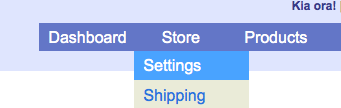
2. Navigate to “Store” -> “Settings”
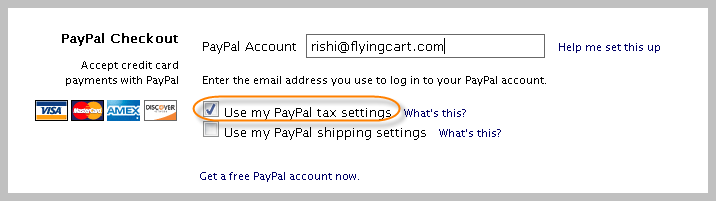
3. Scroll down the page to the “PayPal Checkout” section and select “Use my PayPal tax settings”
4. Hit “Update Settings” at the bottom of the page to save your changes
5. Login to your PayPal account
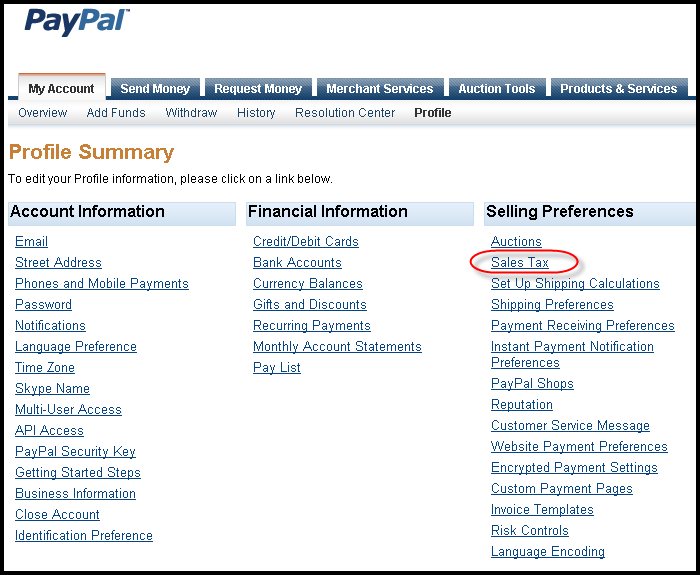
6. Click on “Profile”

7. Click on “Sales Tax”
8. Click on “Add New Sales Tax”
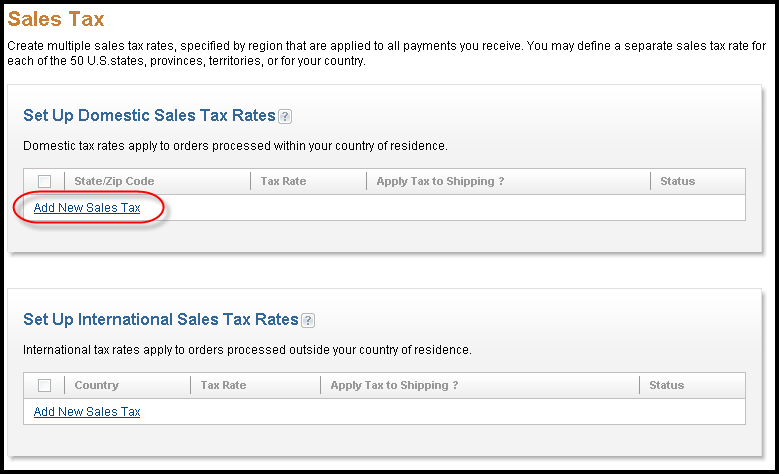
9. Follow the PayPal instructions, repeat to setup more than one location
–
Please Note: If you are using Google Checkout and/or PayPal Express, your PayPal Tax settings will not be applied when a customer makes a purchase via PayPal Express. We highly reccommend deleting all Google Checkout and PayPal Express information on your store settings page. Your customers will still be able to pay with PayPal or any major credit card.
[...] PayPal Override Tax Instructions [...]
Coffee Maker Review…
[...]How do I use my PayPal Tax Settings? | Tips for Creating an Online Store[...]…
All captcha jobs and Software for speed and using multiple ID’s are available at very Low and Affordable rates,Typeit,Protypers,Megatypers,captcha2cash,qlinkgroup,kolotibablo…
[...]How do I use my PayPal Tax Settings? | Tips for Creating an Online Store[...]…
hello!,I really like your writing so much! proportion we communicate more about your article on AOL? I require a specialist on this area to solve my problem. May be that’s you! Having a look ahead to see you.
It’s not my first time to go to see this website, i am browsing this web site dailly and get fastidious data from here everyday.
It’s actually a great and useful piece of information. I’m happy that you just shared this helpful information with us.
Please keep us up to date like this. Thanks for sharing.
It’s rather a great in addition to handy part of facts. I’m just delighted you discussed this handy details about. You need to continue being us all up to par like that. Thank you for discussing.