
We wanted to add a little culture to Flying Cart. Now, every time you login to your store headquarters you will see a greeting in another language in the upper right hand corner. Scroll over it to see what that greeting means and where it is from.
We wanted to add a little culture to Flying Cart. Now, every time you login to your store headquarters you will see a greeting in another language in the upper right hand corner. Scroll over it to see what that greeting means and where it is from.
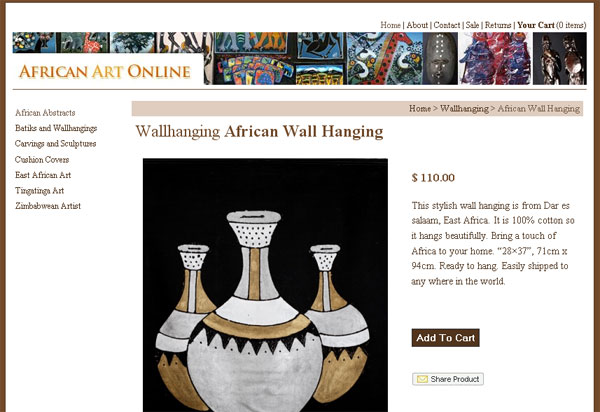
We just changed the way the product thumbnail images are displayed. They are now intelligently cropped into squares which makes them line up nicely on your page. In many cases they also look sharper because they are not stretched. Enjoy!

A friend of mine just sent me a link to ecommwire.com. Its a pretty cool site to publish a press release and get your word out there a little more. So if you are announcing a sale, have a really cool product coming out, doing something innovative with your site, or just have something to say submit your press release to them.

I will be in Milwaukee, Wi tomorrow on an “Emerging Entrepreneurs” panel at the Wisconsin Entrepreneurs’ Conference sponsored by the Wisconsin Technology Council. If you are in the area you should join me.
PS: I know what you are thinking… and I totally agree. Their website needs a lot of work especially since they are a technology council.
Customizing the colors on your store site is one of the easiest ways to make it your own. In the past we have offered pre-defined color schemes, as well as custom CSS, but these were still limiting. Our new color tool allows you to set your own colors for any region of your store design, as well as set your own text colors and font styles, with the ease of point-and-click color selection. You can choose your colors and preview how they will look all within the same page.
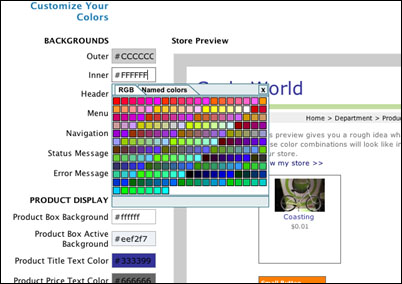
Those of you who don’t know CSS or don’t want to mess with it now have an easy way to customize the look of your site. We dare you to make something really crazy looking. Seriously, if you want to, now it’s possible. Look for the new color tool in your store Headquarters on the Store > Colors page.
What people are saying:
“I am totally in love!!!” – Baby Town USA
“Just wanted to say THANK YOU! THANK YOU! THANK YOU! for the new color tool…makes it sooooo much easier for those of us who don’t have time to mess with learning the ins and outs of CSS but want more a more customized look…. we love you too! THANKS AGAIN!” Erin Breland, The Blue Daisy & Co.
So you got a lot of products on ebay? No problem. You can export your products off ebay and into your Flying Cart store using our bulk upload.
EXPORT PRODUCTS FROM eBAY:
1. Sign in to eBay File Exchange
2. Click “Create Download Request”
3. Download your active listings on sale
IMPORT PRODUCTS TO FLYING CART
4. Click on the “Products” tab
5. Click on the “Bulk Upload” tab
6. Reformat your .CSV file based on our instructions located on our Bulk Upload page.
Sometimes a size XXXL or a glittered pattern costs a little extra. Here is our step by step guide on doing so.
STEP 1: First decide what you are going to charge a little extra for. In this case lets say you want to charge extra for an XXXL size.
STEP 2: Make “Size” your primary product attribute (the default is color). You can do this on the Products -> Attributes tab.
STEP 3: Browse and click Edit one of your existing products.
STEP 4: Click on “Add New Size” at the bottom of this page (if your primary attribute is color the link will be “Add New Color).
STEP 5: Select the “XXXL” size in the drop down
STEP 6: Select the special pricing
You are all set! Now your customers can easily pay extra.
Track your inventory. Sit back and relax, you can now stop worrying about over selling.
Enter in your product quantities and choose whether you want them to display in your store after they are sold out. Get email notifications when things sell out. Ease your mind knowing you won’t oversell. This feature is only available to Pro customers.
How It Works
Step 1: When adding (or editing) a product, select “Track Product Quantities”
Step 2: Select “Continue selling after stock reaches 0″ (good if you know you can get more easily) OR “Mark the product SOLD OUT when stock reaches 0 and stop selling” (good if you have a limited supply)
Step 3: Enter in the amount you have in the Quantity box. When you are on the edit page, you can enter a different quantity for each color or size of the item.
When customers purchase items in your store, the quantities in stock will be updated on the products that you are tracking.
If you have chosen the option to stop selling a product when it becomes sold out, it will no longer be displayed in your store. If you have a product with multiple colors and sizes and only some of them are sold out, customers will not be able to add the sold out ones to their cart. After products are sold out you are still able to view and edit them in your Headquarters.
Email notifications
You have the option of receiving an email when your products sell out. This is turned on by default and can be turned off on the Store > Settings page in your Headquarters.
Note to Pro customers
If you opened a store with us before May 12, 2008, have more than 50 products, and would like to track quantities on ALL of your products, please send us an email. We can turn it on at once for all your products and set a default quantity, which will save you the work of doing it manually.
Our most requested feature yet! Now you can charge shipping based on total weight of an order.
How it Works
Step 1: Login to your store Headquarters and navigate to Store -> Shipping
Step 2: Click on the drop down and select “Ship by Product Weight” and hit Save
Step 3: Specify shipping prices based on weight ranges
Step 4: All your products will now have an editable Weight field added to them on the edit pages
Step 5: Go to each product page and specify how much each item weighs
Your customers will be charged based on the total weight in the cart.