Thursday, November 6th, 2008 by rishi
 |
Most of us are guilty of spending a little too much time online. It’s so easy to do. And some of us have gotten to the point where we might even be guilty of spending more time with our computer than with actual humans (sadly I think I fall into that category). Meetup.com is a site that helps you get out and meet real people in your area that share your interests. |
I started browsing the groups here in Austin and found so many interesting ones that I wouldn’t even have time to go to them all. Some of the ones I found interesting were the Austin Progressive Vegetarians, the Community Sewing Project (donate everything they make to hospitals), Austin Bookcrossing, the Austin Happy Campers, and the Austin eBusiness Brunch. There is really something for everyone, no matter what your interest.
Score one for the Internet.
Wednesday, November 5th, 2008 by rishi

Check out The Dieline for great ideas on how to package your product. They show off some of the best packaging designs I have ever seen!
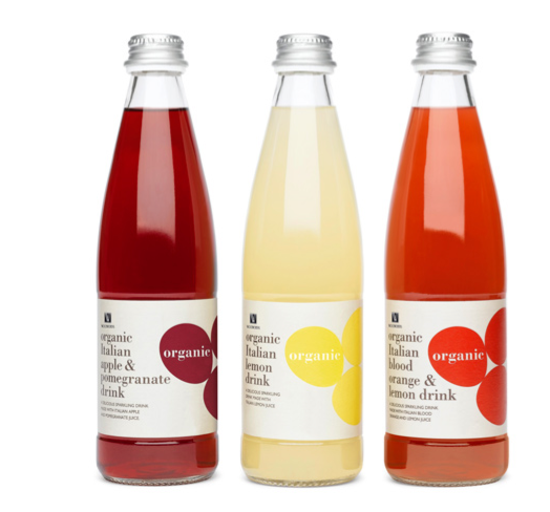

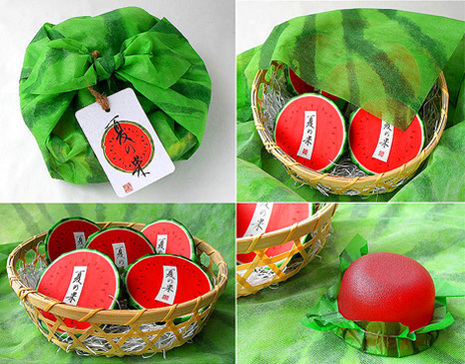
My favorite part of the blog is the before and after section where they show you ways companies have improved their package design. It really makes you think of ways to improve your design.
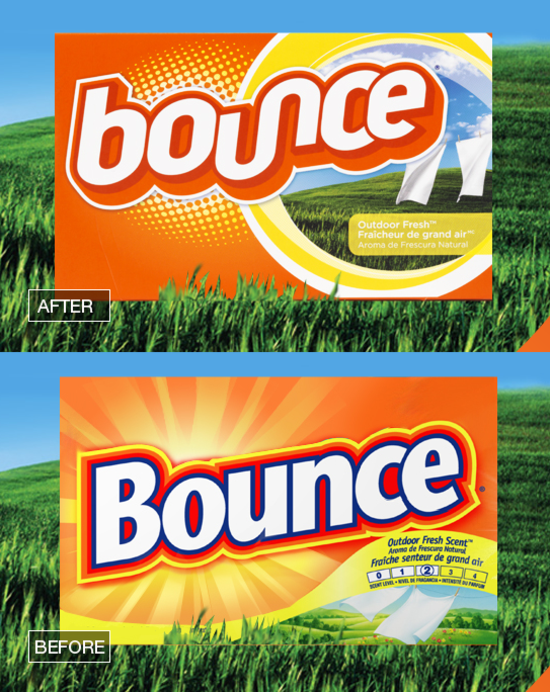
If you have new innovative packaging. Show your stuff off by submitting it to them.
Tuesday, November 4th, 2008 by rishi
We are very excited to show off what we have been working on for the last month. A lot of love and elbow grease went into this.
Google Checkout is Here!

You asked for it, and we now bring you an alternative to PayPal. Process credit card payments using your Google account. Solid and reliable. Yippee! Go to your Store > Settings tab to set this up.
Why we love Google Checkout:
- Its cleaner and easier to process payments
- More reliable (did we mention that?)
- If you advertise on Google (via Google Adwords) they will display “Google Checkout” under your ad
Using Google Checkout with Flying Cart is easy. Here are our step by step instructions.
Orders Nearly Manage Themselves
Well not quite, but close. Orders now have a nice little three-step process with matching icons:
- Get Paid – shows you when the payment is in your account
- Ship – click the icon when you have shipped the order
- Archive – file the order in your archive to get it out of the way

That’s Not All
- Order numbers now correspond to your PayPal or Google Checkout order number
- A PayPal or Google logo on each order shows you how the customer paid
- Your customer’s billing information is displayed below the shipping information
- You can send email notifications to tell your customer that you shipped her/his order (see the Store > Settings tab)
Expanded Options for Charging Tax
You know what they say about death and taxes. Yep, inevitable.

In most states you only have to charge the customers in your state. Now you can easily apply a percentage to the total for customers in your state.
Simplified Shipping Page
Our old shipping page was a little confusing so we changed it around to be more straightforward. ‘Nuf said.
Subscribe to our Blog via Email
Get all of our latest news in your email. Keep in touch with our growing community. Read about our newest features and don’t miss out on our tips about how to improve your store and how to run your online business. Plus, enjoy Rishi’s goofy humor  (He did start a joke club in college by the way.) Sign up here.
Tuesday, November 4th, 2008 by rishi
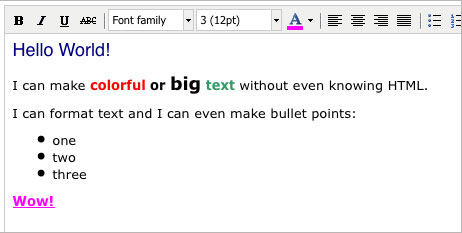
What You See Is What You Get. I just added a graphical HTML editor in the Flying Cart Headquarters so you can add style to your site without knowing any HTML. Take a look for it on the pages where you edit your Homepage, About page, Return policy, and product descriptions, to name just a few. You can change the font, size, and color of your text, add bullet points and images, and more.
The new editor is a free Open Source web plug-in called TinyMCE. It is so easy to use and useful, I can’t say enough good things about it. Have fun.
Now everyone, it’s election day so don’t forget to vote! Let’s bring in some positive change.
NOTES TO ADVANCED HTML USERS …
1. You can still write your own HTML by clicking on the “HTML” button on the toolbar and entering your code in the popup window.
2. Any existing HTML tags (that you entered before this feature was available) that are visible in the editor window will display as raw HTML tags on your page if you save changes. TinyMCE will convert all HTML tags to HTML escape characters. This is probably not what you want. To avoid this problem, you can either copy and paste your exising code into the HTML code window, or you can redo your formatting using the graphical editor.
Monday, November 3rd, 2008 by rishi

Checkout Pixlr. If you want to simply retouch your images but don’t want to buy Photoshop. In minutes you can upload your picture and modify.
Here are somethings I would use it for:
- Adding text to images (like your website name)
- Reducing the image size
- Cropping out the background
Thursday, October 30th, 2008 by rishi
I’m a really big fan of stores with background images. It adds a ton of personality.
Here are some really great websites that offer really cool looking background images for free:
Din Pattern
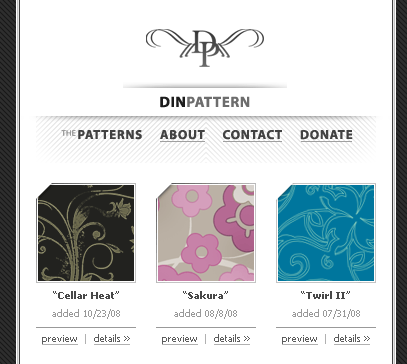
Fading Background Images

Everyday Icons
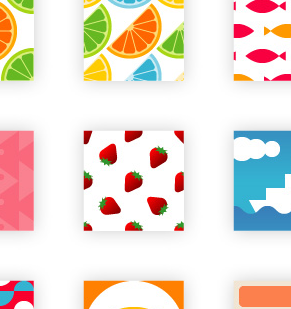
Squid Fingers

Of course you can always Google “Background Images” too
Wednesday, October 29th, 2008 by rishi
 Google Checkout allows you to accept credit card payments using a (free) Google account. In our experience, it is easier to use and more reliable than PayPal for a nearly identical functionality. Read more about Google Checkout here.
Follow these steps to use Google Checkout on your store. Feel free to download and print these instructions out.
1. Sign up for a Google Merchant account. It is free and easy.
Please Note: Google will make a small deposit in your bank account and you will need to verify the amount in order to complete your sign up. This will take a day or two.
2. Login to your Google Checkout account and go to “My Sales”. Click on the “Settings” tab and then click on “Integration” on the left.
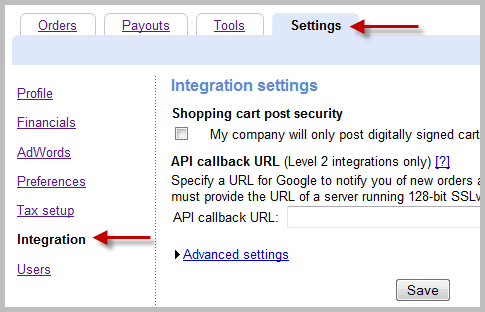
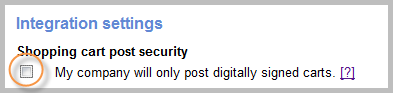
3. Make sure “My company will only post digitally signed carts.” is unchecked.
4. Locate your Google merchant ID and Google Merchant Key on the right side of this page.
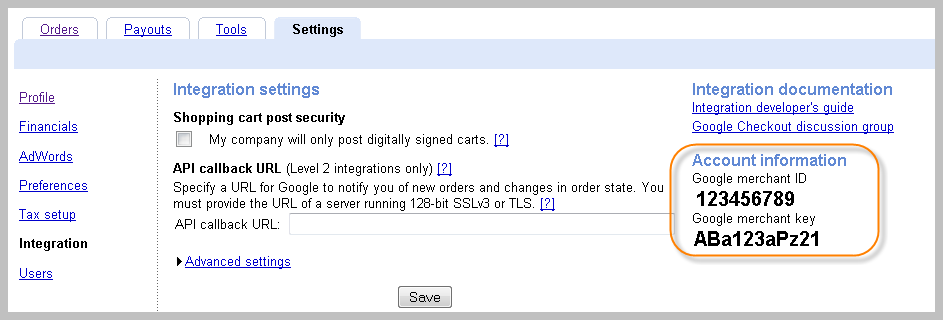
5. Login to your Flying Cart store headquarters (in a new browser window). Go to your “Store” -> “Settings” tab. Scroll down to the Payment section and enter in your Google Merchant ID and Google Merchant key that you got from Step #4.
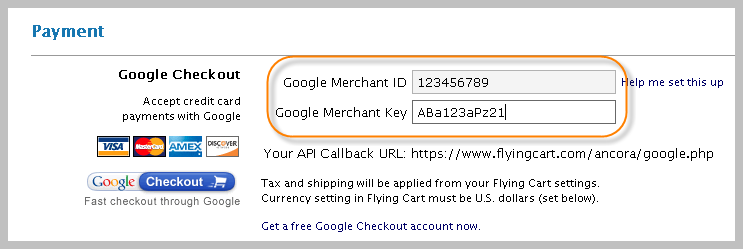
6. Double check that your Google Merchant ID & Key that you copy/pasted into your Flying Cart settings section is exactly what Google Checkout gave you.
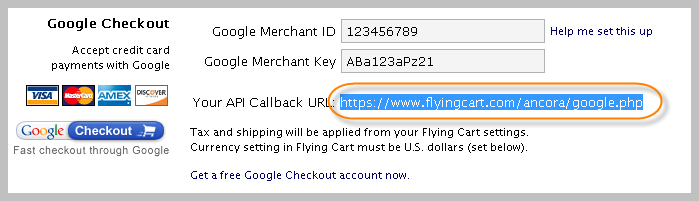
7. Highlight your API Callback URL from the Google Checkout section and go to Edit > Copy in your browser to copy it. Scroll down the page and click “Update Settings” at the bottom.
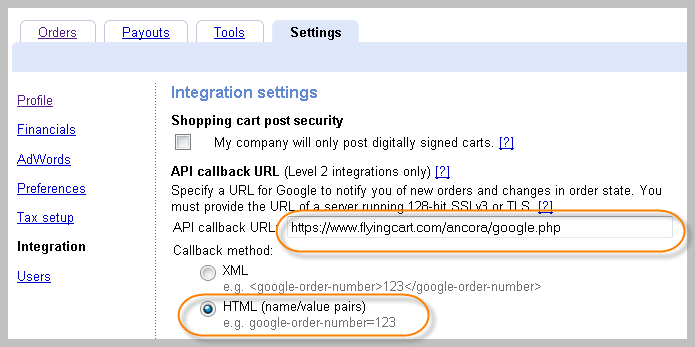
8. Go back to the window with your Google Settings and paste the API Callback URL into the field on that page. Select “HTML (name/value pairs)” as the callback method. Hit “Save”.
9. Go to your store, put something in your cart and notice that Google Checkout is now an option. Enjoy!
Tuesday, October 28th, 2008 by rishi
Here are a few of our recent interviews. Read more about what it has been like starting and running Flying Cart.
Rishi’s interview with Pek Pongpaet, hack of all trades
Margo’s interview with Gaebler.com
Tuesday, October 28th, 2008 by rishi
 If you need a new logo checkout 99 Designs. You simply post up what your company is about and post up a prize amount. Then designers from all around the world submit their designs to win your prize money.
It seems like a good prize amount to attract top designers is between $100-$250. To get an idea of how cool this is check out some in process design competitions.
99 DESIGN COMPETITION EXAMPLES
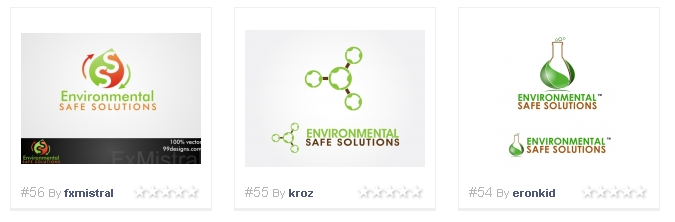
- Competition for Environmental Safe Solutions
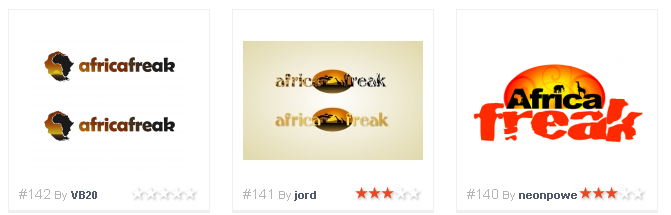
- Africa Freak
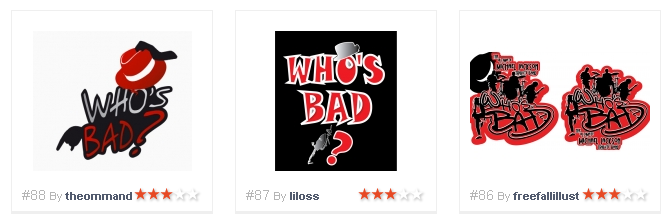
- Logo for Michael Jackson Tribute band
MORE LOGO DESIGN OPTIONS
- Make your own using a different font. 1000′s of cool free fonts listed here
- Post an Ad on Craigslist under Jobs in the Art/Media/Design section in your city
Monday, October 27th, 2008 by rishi
With the Holidays coming up. I wanted to share my thoughts on ways to greet your customers.
THE WORST
Nothing makes me want to hit the “Delete Email” button faster when I get an email from a company that sends a massive impersonal email with an image attached (usually something like a tree with snow falling for Christmas, or pumpkins for Thanksgiving, or candles for Diwali)
I get these a lot and think its completely pointless. If you are going to send a massive email:
- At least make it a newsletter and show off some of your products
- At least include a picture with you and your family in it (isn’t that what the holidays are for?)
THE BEST
I love it when I get a personal email. With my name and something personal about me. For example a customer yesterday emailed me this:
“A very special Happy Diwali Greetings to you and flying cart staff members. Let the Joy of flight bring bright future with your wonderful simple, easy to create and use stores brings more shop online stores for common man to get benefited.”
I was really touched!
EXAMPLE EMAIL
Here is an example email that I just came up with that might work for you:
Hey [Customer Name],
I wanted to wish you a very merry Christmas. I hope you have a chance to wear that scarf you bought from me last month
Attached is a picture of me and my family celebrating!
Have a great holiday!
[Your Name]
[Your Website URL]