Tips for Creating an Online Store

a clever way to supersize your images

Thursday, October 9th, 2008 by rishi

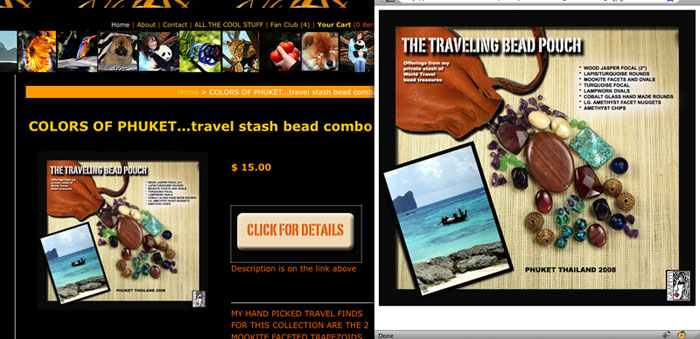
Have you ever wished you could have supersize product images on your store? Well, you may have noticed that we don’t offer this option yet… But never fear because our customers are always coming up with creative solutions to get the job done. Sandra at Graffiti Jewelry figured out a very clever way to have supersize images on her site: upload supesrsize images to Flickr and put a link with a popup window opener in the product descriptions. See it in action here.
Here’s how to do it:

  1. Upload your supersize images to your Flickr account (or your own web hosting account)

  2. Make note of the static URLs of each image. For Flickr, they will be something like this:

    http://farm4.static.flickr.com/1234/123432432.jpg

  3. Made a nice button that customers can click on to see the supersize image. Sandra’s button says “Click for Details” and matches her store. If you don’t want to do this, you can use a simple text link.

  4. Log in to your store headquarters, navigate to your product page, and put a link to the supersize image in the product description.

    Here is some sample HTML code that you can cut and paste. You will need to change the image link to the URL of your image from step 2. This is also where you would add code to link your image from step 3.

    <br><br><a href="#" onClick="MyWindow1=window.open('http://farm4.static.flickr.com/1234/123432432.jpg','MyWindow1','toolbar=no,location=no,directories=no,status=no,menubar=no,scrollbars=no,resizable=no,width=900,height=850'); return true;">Click for details</a>

Thanks Sandra!

dancing with matt

Tuesday, October 7th, 2008 by rishi


This guy traveled around the world with his video camera and got people everywhere to dance with him. He danced in some pretty far out places. I watched this video, then watched it again, and again. There’s no question about it, people everywhere love to dance. Now can’t we all get along? Matt’s website: wherethehellismatt.com.

Generate some Blog Buzz

Tuesday, October 7th, 2008 by rishi

the Flying Cart Bee... bzzzzzz

When we first launched Flying Cart no one really knew about us until we reached out to some blogs and asked them to talk about us.  Luckily they totally did AND it really helped!

Here is how I think you can do the same:

1. Search on Technorati or Google Blog Search with keywords related to your store.

2. Find the bloggers contact information (usually on the contact page or on the sidebar).

3. Email them a really interesting story about your store.

Here are some examples of possible angles you can pitch in that email:

  • How you make all your products from recycled materials
  • Your product is the best in the world because it can never break or be worn out
  • How you are a stay at home mom entrepreneur
  • You are really young – You are really old
  • You have really cheap prices because you have some crazy connection
  • Your girlfriend left you and now you want to get back at her by starting a business and becoming crazy rich!
  • Your products are just soo damn good looking

Be creative and work any angles you think you have.

Here is a compiled list of people that might be interested in featuring you:

We would like to keep this post updated with more blogs.  If you know of any please let us know in the comments.

Fan Bookmarking Ball

Monday, October 6th, 2008 by rishi

So check this out.  All fans can bookmark your products on any product page:

Fan Bookmarking

When a fan logs in to their account they will be able to easily view their favorite products:

My Product Bookmarks

Do you sell T-Shirts?

Friday, October 3rd, 2008 by rishi

If you sell t-shirts then check out Please Dress Me.  It is a t-shirt search engine.  You can easily get your t-shirt listed by signing up here.

You need to Try Google Adwords

Tuesday, September 30th, 2008 by rishi

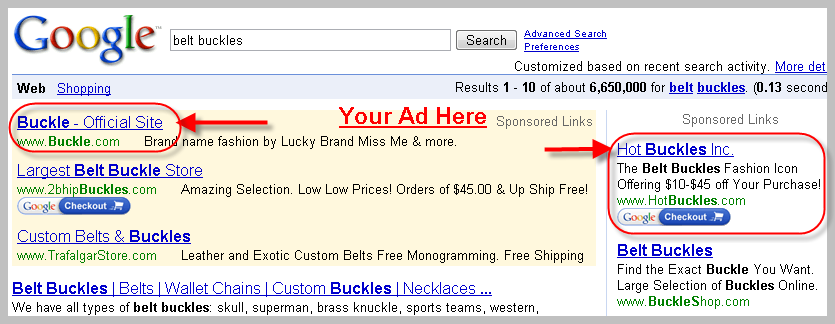
Hello Folks!  A good way to get instant traffic is by promoting your products on Google. Imagine a world when anytime someone thinks of your product they see your store.  Well… with Google Adwords you can get really close to that.

With Google Adwords you can advertise your store when specific keywords are being searched for.  It is very cost effective if you start with a small budget and advertise specific keywords.

I wrote up a very easy step by step guide on running your first cost effective Google Adword Campaign:

See it on the Web | Download it as a PDF

How to Create a Google Adword Campaign

Monday, September 29th, 2008 by rishi

SIGN UP

1. Create a Google Adword account by clicking on the “Start Now” Button (upper right hand corner)

2. Select “Starter Edition”

3. Select the “I have a webpage” option

4. Click “Continue” at the bottom

TARGET

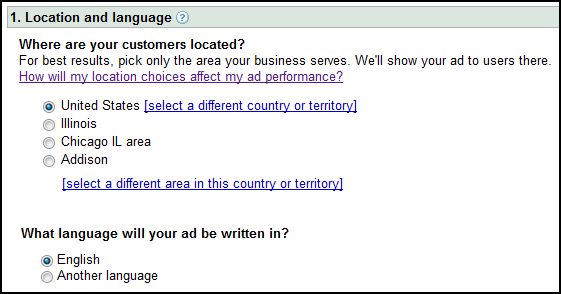
5. Select where your customers will be coming from.  Its a good idea to target to a certain region but it totally depends on your product.

Google Adwords Location Targeting

CREATE YOUR AD

6. Go to your store and pick a specific product you want to advertise.  Copy the entire URL of that page.  (It should look something like this http://YOURSTORE.flyingcart.com/?p=detail&pid=49&cat_id=6)  Make sure you copied the ENTIRE URL.

It is easier to advertise a single product vs. your entire store because you can pin point specific keywords to it.

7. Enter in the URL you just copied

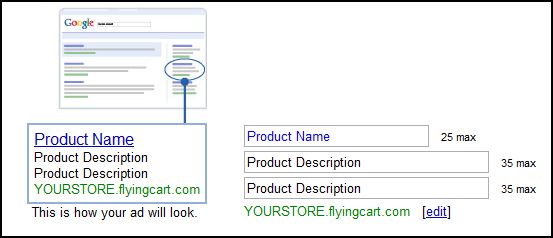
8. Time to write your Ad.

The first line can be your product name.  The other two lines should be describing the product.

Example Ad #1 for Simply Tana’s Pink Notebook Bag

Pink Notebook Laptop Bag

$19.99 and Free Shipping

Stay in Fashion and Protect your Comp

Example Ad #2 for It’s Always a Good Deal’s Pet Carrier

Airline Approved Pet Carrier

Small Argo Aero Carrier

On Sale – $55.00

PICK KEYWORDS

9. Pick your Keywords.  Enter your keywords in the big box, you can also get ideas by entering your keywords. The best keywords are the super specific ones.

Sample #1 Keyword Examples for Immortal Beloved’s Mimi Bot

- MimoBot and Mimo Bot

- USB Toy and USB Toys

- Friends With You Mimobot Malfi 1GB

- Mimobot Malfi

Sample #2 Keyword Examples for Jon’s Import’s Heart Photo Frame Keychain

- Digital Keychain

- Heart Photo Frame Digital Keychain

- Digital 1.1″ LCD Red Heart Photo Frame Picture Keychain

FINISH

10. Choose the currency you wish to pay in

11. Set a budget.  I suggest $25 at first since it is your first Google Adword campaign

12. Click continue and follow the Instructions Google has for you.

Feel free to Download this post as a PDF.

New! Inventory Management Addition

Sunday, September 28th, 2008 by rishi

new inventory management feature

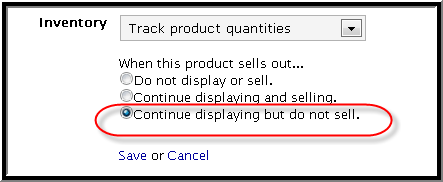
Now you have the option to keep displaying your products even if they are sold out.  Your customers won’t be able to purchase it but they can see it.

The Good Envelope Party

Sunday, September 28th, 2008 by rishi

The Good Envelope Party

One of my favorite stores The Good Envelope Party just got featured on the daily candy!  We are all pretty pumped for them since we love the daily candy.

The Good Envelope Party makes cool looking stationary from salvaged books AND all procceeds go towards community outreach!

Learn More about Google Checkout

Saturday, September 27th, 2008 by rishi

Google Checkout™ is a checkout process that you provide on your website to enable your customers to buy from you quickly and securely, using a single username and password. And once they make a purchase, you can use Checkout to charge their credit cards, process their orders, and receive payment in your bank account.

Google Checkout Payment Page

Top benefits to using Google Checkout:

  • Attract more leads. Buyers that use Google Checkout actively look to buy from merchants that offer it on their websites. If you use Google search advertising, you can help these potential buyers find you by displaying the Google Checkout badge on your search advertisements.
  • Convert more leads into sales. A fast, secure checkout process helps persuade shoppers to buy on your site and buy more often.
  • Lower sales processing costs. For every $1 you spend on Google search advertising, you can process $10 in sales for free. If you don’t use Google search advertising or you use up your free transaction processing, you can process additional sales at a low 2% and $0.20 per transaction.
  • Protect yourself from fraud. Google Checkout’s fraud prevention tools stop invalid orders from reaching you. And Checkout’s Payment Guarantee policy helps protect you from charge backs.

FAQ about Google Checkout: