Tips for Creating an Online Store

CSS Reference Guide

Friday, December 28th, 2007 by rishi

This is a detailed guide to all the CSS tags used by Flying Cart.

Div Tags: Layout
The DIV tags are used for page layout. They are on every page of the store unless otherwise noted. You can modify the default CSS to dramatically change your store layout.
div#container
A container surrounding the header content, the department menu, the main content, and the footer of the page.

div#header
Formatting for the header if the logo is being displayed as text.

div#header_with_logo
Formatting for the header if a logo image is used.

div#store_name_with_logo
Formatting for the store name if a logo image is used. (See class .header_text for a store name displayed in text.)

div#top_menu
Formatting for the top menu.

div#wrapper
A container surrounding the department menu.

div#menu
A container surrounding the department menu items.

div#content
A container surrounding the inner content of the page.

div#breadcrumb
Formatting for the breadcrumb navigation links. Located on all pages of the store except the homepage.

div#footer
A container surrounding the footer content.

The heirarchy of DIV tags looks like this:

HTML Tags: Formatting

The following standard HTML tags are used within the store and you may choose to style them.

body, a, table, tr, td, h1, h2, h3, p, form

Class Tags: Boxes, Navigation, Text
These classes are used in the inner content of the store pages.

.header_text
The store name if it is being displayed as text

.small_text
The smallest font option.

.medium_text
A medium size font option.

.menu_item_wrapper, .menu_item
The formatting and layout for department names.

.message, .error
The text and box for successful and error feedback to user actions.

.network_box
The region containing the list of the social network connections. Located on the homepage.

.connection
The region containing each social network connection

.product_box
The region containing each product thumbnail image, title, and price. Located on the homepage for Featured Items and on the Department pages

a .product_title
The link text for the title of a product when it is displayed inside a .product_box.

.product_price
The text for the price of a product when it is displayed inside a .product_box.

.product_title_detail
The text for the price of a product when it is displayed. Located on the product detail page.

.addtocart_box
The region showing the add to cart options. Located on the product detail page.

.addtocart_box_head
The top row of the add to cart options. Located on the product detail page.

.cart_box
The region containing the items in the shopping cart. Located on the Cart page.

.cart_box_head
The top row of the table containing the items in the shopping cart. Located on the Cart page.

.cart_box_item
A single row per item in the shopping cart. Located on the Cart page.

.btn
A standard button. Located on the product detail page, the Cart, the Email-A-Friend page.

.btn_sub
A secondary button. Should be smaller or less prominent than the .btn class. Located on the Cart page.

.btn_pay
The button users click to go to PayPal and pay by credit card. Should be larger or more prominent than the .btn class. Located on the Cart page.

The following screenshots show exactly where the classes are used. Class names are indicated in bold black text.

Screenshot 1

Product detail page

Screenshot 2

Cart page

Table ID Additions – Added June 2008

There are now “id” fields assigned to all of the tables on pages within the stores so you can further customize your layout. Here is a list of all the id names. View the page source code within your store to see what goes where. The names explain themselves.

saleContentTable, saleContentTableRow, saleContentTableCell

productsContentTable, productsContentTableRow, productsContentTableCell

homeContentTable, homeContentTableRow, homeContentTableCell

featuredItemTable, featuredItemTableRow, featuredItemTableCell

networkBoxTable, networkBoxTableRow, networkBoxTableCell

emailAFriendTable, emailAFriendTableRow, emailAFriendTableCell

detailContentTable,detailContentTableRow, detailContentTableCell

detailImageContentTable,detailImageContentTableRow, detailImageContentTableCell

cartContentTable, cartContentTableRow, cartContentTableCell

contactBoxTable, contactBoxTableRow, contactBoxTableCell
How do I use customized CSS?

Friday, December 28th, 2007 by rishi

You can use our custom CSS feature to create a unique design for your store. This document explains how to install a custom CSS file and how to upload images to use with your CSS.

The Learning Curve
Developing with CSS has a significant learning curve. New users should do some reading and go through an online tutorial before attempting anything. Users with basic
CSS knowledge should experiment with modifying the default CSS provided in the Headquarters. Intermediate and advanced users should be comfortable using our CSS reference to create complex new designs and layouts.

If you are having trouble getting your CSS to look right, there are lots of online reference materials.

Updating a CSS File

  1. In your store Headquarters, go to the Store > Custom CSS tab.
  2. Check the box to “Use custom CSS as defined below”.
  3. The default CSS that appears in the editing window is the CSS used in our Standard template. You can begin editing from there, or you can paste in your own file.
  4. Click “Update CSS” to save your changes.
  5. View your store to see the new design in place. You may have to reload the page and/or press CTRL-F5 (in Windows) to see the changes.

Uploading Images to Use with your CSS

You may be interested in using background images, button images, or other types of images with your CSS file. We make it easy and let you host these images on our servers.

  1. In your store Headquarters, go to the Store > CSS Images tab.
  2. To upload an image, click on the Browse button and find the image that you would like to upload.
  3. Click Upload to upload the image.

All the images that you upload will be accessible in the directory http://yourstorename.flyingcart.com/mytemplates/images, with the original filename of the file that you uploaded. For relative links, you should use mytemplates/images/ as the relative path.

For example, if you have an image called myimage.jpg that you want to set as a background, you would use the following CSS in the body tag: background-image: url(“images/myimage.jpg”).

Tips

Make sure you check your site in different browsers. Some CSS tags look very different in different browsers, and some are not universally supported. Invalid CSS may cause your customers difficulty using the site. We recommend that you check your site in Internet Explorer 6 and 7, Firefox, Safari, and on a Mac and PC to make sure it looks like you expect.

Generic custom domain instructions

Saturday, December 22nd, 2007 by rishi

You bought a domain name.  Congrats!  Must feel good.  Now it’s time to link it your Flying Cart store.  Follow the instructions below to get it going.

1. Get to your DNS settings in your domain provider.

2. Look for the www alias. It is probably currently pointed to @. This is the CNAME you will be editing.

3. Enter “www” for the Alias Name, and “stores.flyingcart.com” for the Points to Host Name and save.

4. Setup forwarding on your domain so http://www.YourStoreDomain.com to http://YourStoreDomain.com

4. Login to your Flying Cart store headquarters

5. Navigate to the Store -> Settings tab and locate the “Website Address” section on the page

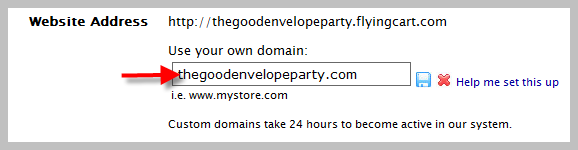
6. Type in your domain name under “Use your own domain:”

Enter Website Address

7. Hit the “Update Settings” button towards the bottom.

8. Wait a full 24 hours

If these instructions don’t work for you.  We can help! Please contact us under the “Help” tab in your store headquarters.  Please include where you purchased your domain name.

MyDomain.com Custom Domain Instructions

Saturday, December 22nd, 2007 by rishi

My Domain LogoYou have a domain name from MyDomain.com.  The next step is to link it to your Flying Cart store.  This way your customers can just type in your domain name and go right to your store.  Exciting!  Follow these instructions to get it setup.

1. Login to your MyDomain.com account.

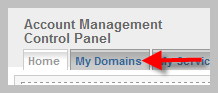
2. Click on the “My Domains” tab at the top.

My Domains Tab

3. Click on your domain name

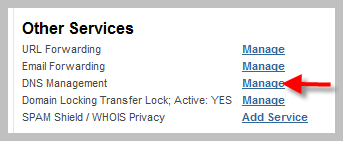
4. Scroll down and click on “Manage” next to “DNS Management”.

My Domain Other Services Section

5. Locate the “CNAME” section enter “www” and make the canonical name “stores.flyingcart.com”.  Click the “Update” button.

CNAME

6. Login to your Flying Cart store headquarters.

7. Navigate to the Store -> Settings tab and locate the “Website Address” section on the page.

8. Type in your domain name under “Use your own domain:”.

Enter Website Address

9. Hit the “Update Settings” button towards the bottom.

10. Wait a full 24 hours.

Register.com Custom Domain Instructions

Saturday, December 22nd, 2007 by rishi

Register.com LogoYou have a domain name from Register.com.  We love custom domains, a great way for customers to remember your store.  Follow the steps below to get it working with your Flying Cart store.

1. Login to Register.com.

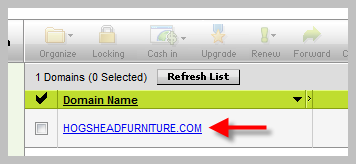
2. Click on your Domain Name that you wish to use (i.e. mystore.com).

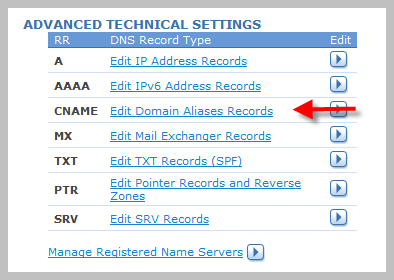
3. Scroll down and under the “Advanced Technical Details” section click on “Edit Domain Alias (CNAME)”.

Register.com Advanced Technical Details

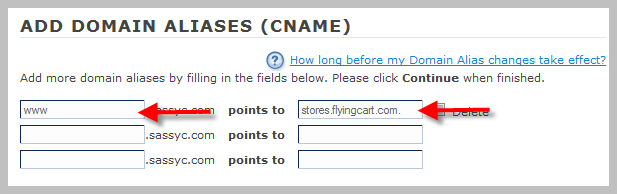
4. Enter in “www” right before your domain name and in the next field over enter “stores.flyingcart.com.” Click the “Continue” button twice to confirm your changes.

Register.com Domain Alias

5. Click on “Web Site Forwarding”.  This is a paid option in Register.com, you will need to purchase this.

Register.com Website Forwarding

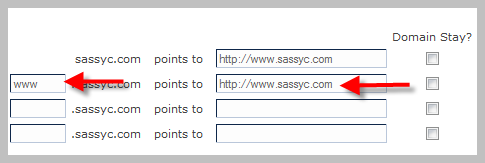
6. Enter in “www” and enter in your domain name with http://www. before it.  For example if your domain name is sassyc.com then type in http://www.sassyc.com.  Click the “Continue” button twice to confirm your changes.

www forwarding

This step allows your customers to be able to type in http://www.myCoolStore.com or http://mycoolstore.com and get to your store.

7. Login to your Flying Cart store headquarters and navigate to the Store -> Settings tab and locate the “Website Address” section on the page.

8. Type in your domain name under “Use your own domain:”.

Enter Website Address

9. Hit “Update Settings” button at the bottom of the page.

10. Wait a full 24 hours.

GoDaddy Custom Domain Instructions

Saturday, December 22nd, 2007 by rishi

GoDaddy Logo

You own a domain name that you bought from GoDaddy!  Nice job. Custom domain names are fun.

Here is a step by step video tutorial on how to setup your custom domain:

You can also follow our screen shots and instructions below or watch this video to set it up with your Flying Cart store.

1. Log into your Godaddy.com account. Click on Domains and then Domain Management.

2. Click on the domain you would like to use for your Flying Cart store.

Click on the Domain GoDaddy Screen Shot

3. Click on Launch underDNS Control.

4. Click the edit button next to www under CNAME. Click Ok when it asks if you are sure you want to modify your CNAME Alias.

edit-button

5. Enter www for the Alias Name and stores.flyingcart.com for the Points to Host Name.  Hit Ok.

6. Click on the Domain tab at the top to return back to the Domains details page.

Flying Cart Domain Tab

7. Click on the forward GoDaddy Forward Button button and enter in your domain name with http://www. before it.  For example if your domain name is MyCoolStore.com then type in http://www.myCoolStore.com. Click the check box next to Enable Forwarding, click the radio button next to 301 Moved Permanently, and hit Ok.
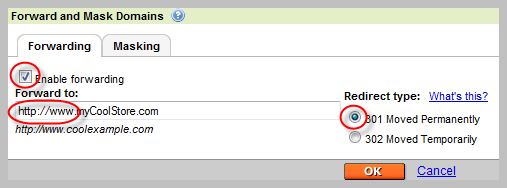
GoDaddy Forwarding Screen

This step allows your customers to be able to type in http://www.myCoolStore.com or http://mycoolstore.com and get to your store.

8. Login to your Flying Cart store headquarters

9. Navigate to the Store -> Settings tab and locate the “Website Address” section on the page

10. Type in your domain name under “Use your own domain:”

Enter Website Address

11. Hit the “Update Settings” button towards the bottom.

12. Wait a full 24 hours

How do I use a custom domain?

Friday, December 21st, 2007 by rishi

1. You must register your domain name. Companies you can buy from are GoDaddy , myDomain, register.com, etc).  Skip this step if you already own a domain name.

2. Follow the instructions for the company you choose.

Contact us if you have any problems.  We will help you get your custom domain going!

How do I set up social bookmarking for my store?

Friday, December 21st, 2007 by rishi

AddThis.com is a social bookmarking tool that will allow your customers to share your product pages with the world. These directions explain how to sign up for an AddThis.com account and set it up to work with your Flying Cart store.

  1. Go to http://addthis.com/account.php
  2. Create a free account by entering your email, selecting a username, and choosing a password
  3. *Important* remember your username
  4. Login to your Flying Cart Head Quarters
  5. Navigate to Store -> Settings
  6. Enter in your AddThis username

How do I set up Google Analytics?

Friday, December 21st, 2007 by rishi

Google Analytics is a great tool that allows you to get detailed statistics on who has visited your site. These directions explain how to sign up for a Google Analytics account and set it up to work with your Flying Cart store.

  1. Go to http://www.google.com/analytics
  2. If you already have a Google account (for Gmail, Blogger or any other Google product), sign in with your existing account and skip to step 4. If you don’t have an account, click “Sign Up Now”.
  3. Fill out the required information and click “I accept. Create my account”.
  4. Click “Sign Up >”.
  5. Enter your website URL (such as “mystore.flyingcart.com”), Account Name, and Time Zone.
  6. Enter in your contact information (optional) and click “Continue”.
  7. Accept the Google Analytics Terms of Service and click “Create New Account”.
  8. Write down the tracking code, it should look something like this: UA-1234567-1.
  9. Log in to your Flying Cart Headquarters.
  10. Navigate to Store -> Settings.
  11. Scroll to the Google Analytics section at the bottom and enter in the tracking code Google gave you in step 8. Click “Update Settings”.
  12. Allow 4-5 hours for Google Analytics to start tracking your site. Then log in to your Google account to see how many visitors are coming to your site!

What is Social Bookmarking?

Wednesday, December 19th, 2007 by rishi

Social Bookmarking is a quick way to bookmark a page on the web and share it with other internet users.

Flying Cart has created an easy way to add social bookmarks to each product page, here are the instructions.
Here is a pretty good definition of Social Bookmarking according to Wikipedia

Social bookmarking is a way for Internet users to store, organize, share and search bookmarks of web pages. In a social bookmarking system, users save links to web pages that they want to remember and/or share. These bookmarks are usually public, but depending on the service’s features, may be saved privately, shared only with specific people or groups, shared only inside certain networks, or another combination of public and private. The allowed people can usually view these bookmarks chronologically, by category or tags, via a search engine, or even randomly.”

Need a video?… Here is one that I found explaining one of the most popular Social Bookmarking tools: Delicious.

3 BIG Benefits to using Social Bookmarks:

1. Great for Search Engine Optimization, the more your website is linked the better your keywords will appear in Search Engines

2. Increases interaction with your visitors

3. Will provide referral based visitors (the best kind)

Top 5 Social Bookmarking Sites you should always bookmark yourself on
1. Delicious

2. Digg

3. Google Bookmarks

4. Reddit

5. Yahoo Bookmarks