The next time you log in to your store you will notice that the HQ has an updated look. We don’t have a hot tub and a deluxe kitchen yet, but check out the following improvements:
Also checkout Two Red’s event Purple Rain if you are in the Atlanta area. I totally love this store and what Two Red is doing with it. Their logo is fun and catchy. They throw events to attract new customers. Nice job!
Want to tax different provinces or states? Want to provide your customers next day delivery if they pay a little extra for it? Now you can with PayPal override.
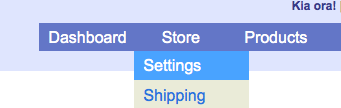
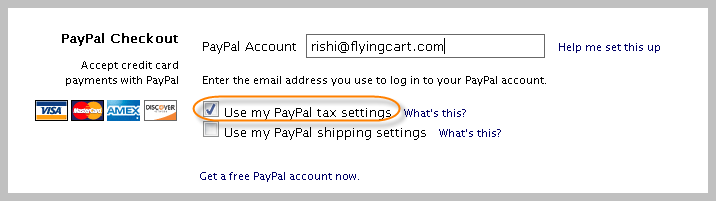
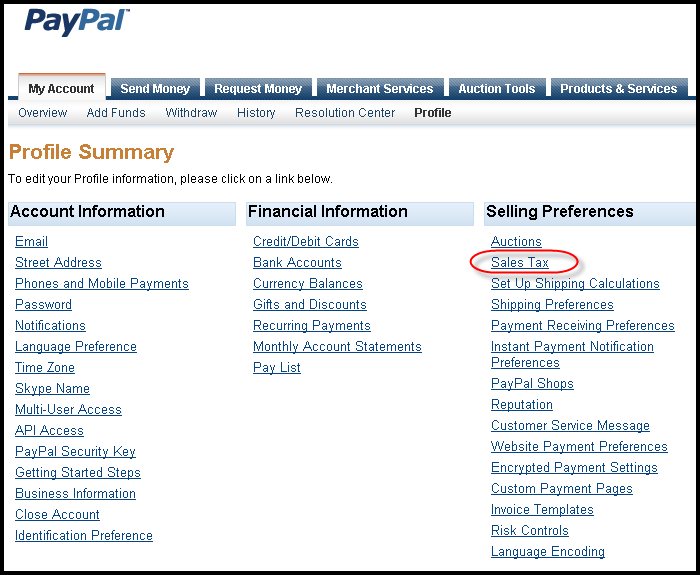
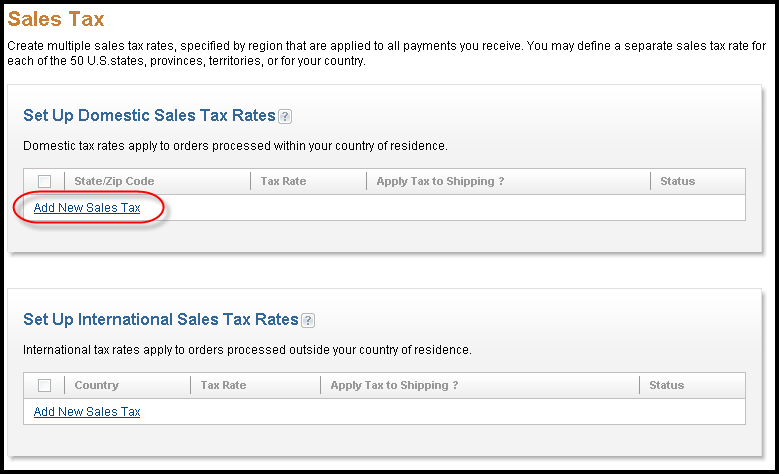
If you want to charge tax to customers in your state only OR if you want to charge different tax rates depending on the customer location, we suggest using your PayPal Tax Settings option. Here are step-by-step instructions:
9. Follow the PayPal instructions, repeat to setup more than one location
–
Please Note: If you are using Google Checkout and/or PayPal Express, your PayPal Tax settings will not be applied when a customer makes a purchase via PayPal Express. We highly reccommend deleting all Google Checkout and PayPal Express information on your store settings page. Your customers will still be able to pay with PayPal or any major credit card.
If you need advanced shipping options, using your PayPal shipping settings is the way to go. Here are step by step instructions on using your PayPal Shipping Settings.
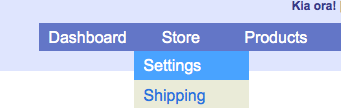
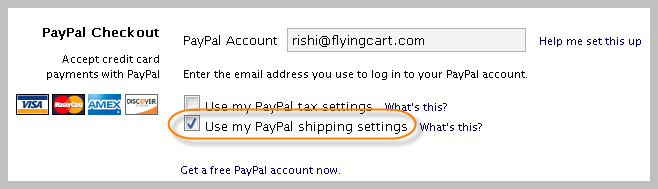
3. Scroll down the page to the “PayPal Checkout” section and select “Use my PayPal shipping settings”
4. Click “Update Settings” at the bottom of the page.
5. Login to your PayPal account
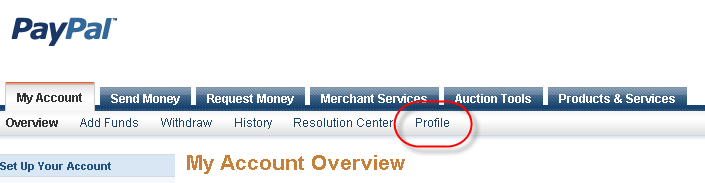
6. Click on “Profile”
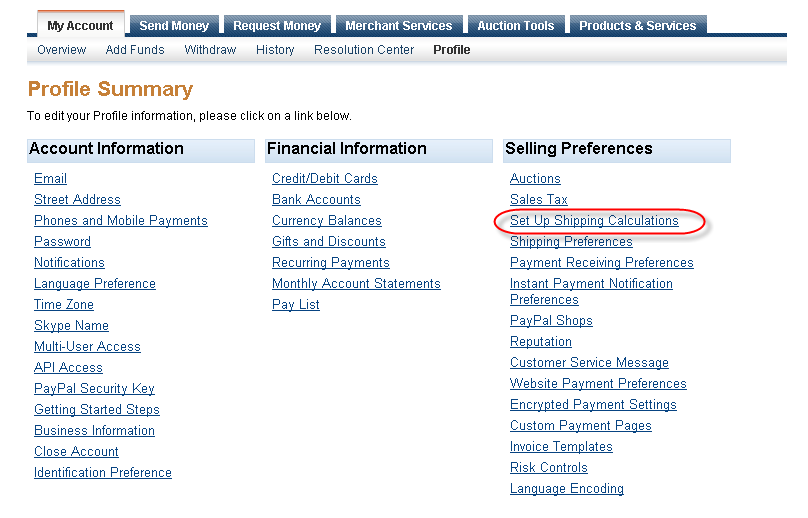
7. Click “Setup Shipping Calculations”
8. Follow the PayPal setup instructions to setup your shipping settings
–
Please Note: If you are using Google Checkout and/or PayPal Express your PayPal Shipping settings will not be applied when a customer makes a purchase via Google Checkout or PayPal Express. We highly reccommend deleting all Google Checkout and PayPal Express information on your store settings page. Your customers will still be able to pay with PayPal or any major credit card.
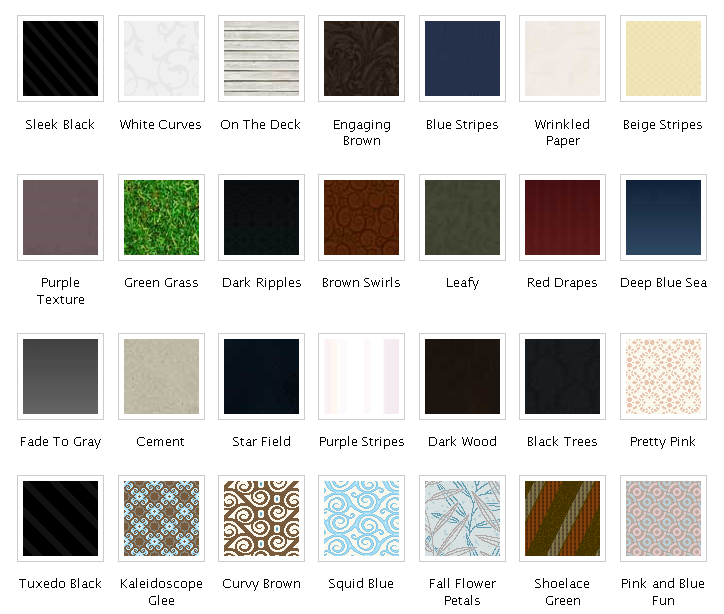
Looking for a way to spice up the look of your store? Give it a slick makeover by choosing from our 24 new default background images. No uploading required – just point and click. Check it out in your headquarters under the “Store” tab.
Occasionally someone might post something negative on you fan club that you don’t want your customers to see. When you are logged in to your own fan club, you have the authority to delete fan postings by clicking on the red x’s that appear next to each one.
If you have a Flying Cart store account, you automatically have a Flying Cart fan account. Your store login and password can be used to log in to any Flying Cart store fan club including your own.
Rishi will be giving a live demo of Flying Cart in the demo pit at the TechCrunch50 conference in San Francisco today. This conference is a pretty big deal, including attendees from Ebay, Google, Yahoo, Ask, Facebook, and MySpace, so we are very excited to be a part of it. Ashton Kutcher will also be demoing his new web application. Here’s a link to the conference website.
The time has come for our one and only Margo Baxter to show off her skills at the Ford Ironman Wisconsin, in her home town Madison, WI tomorrow. Track her progress on IronMan Live - enter in her BIB number: 89.
Here are some clips from IronMan Wisconsin 2007:
Good Luck Margo! You are going to be amazing as always.
We can help you sell any type of file - software, eBooks, videos, images, music, and more! Checkout Digioh.com and start selling your files right on your own website in seconds.



 Want to tax different provinces or states? Want to provide your customers next day delivery if they pay a little extra for it? Now you can with PayPal override.